Latest FAQ
14 results found
How to add a new store?
Enter the warehouse module, then add the settings module and add the warehouse
What is the process for converting between units of measurement?
From the “Inventory Module” Navigate to the SubModule “Settings” Select Add Enter the Name ,Quantity and the Unit Name
What is the process for converting between units of measurement?
From “Inventory module”Navigate to the SubModule “Settings” Go to “Unit of measures conversion”Select Add Enter the Name , the Quantity and Unit Name Select “Sa... Read more
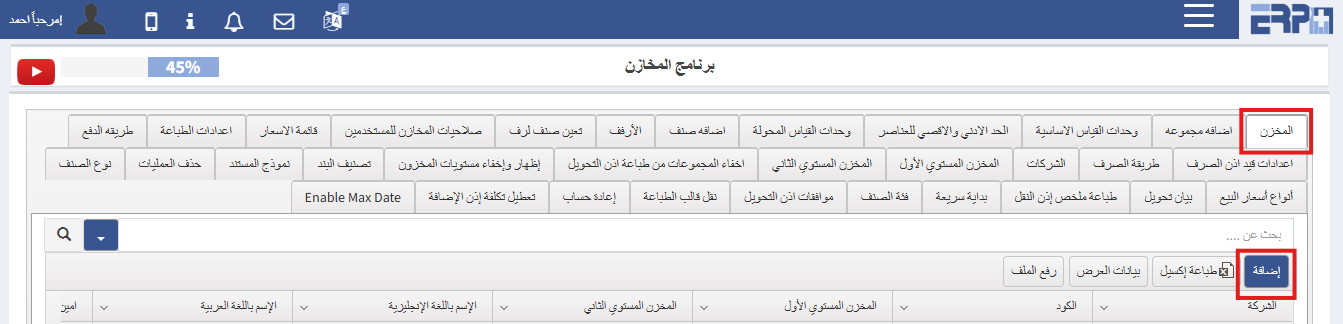
How to add a new Stock?
From the Inventory Module, Go to SubModule “Settings”Go to “Stock" Click Add Complete the required details then “Save”
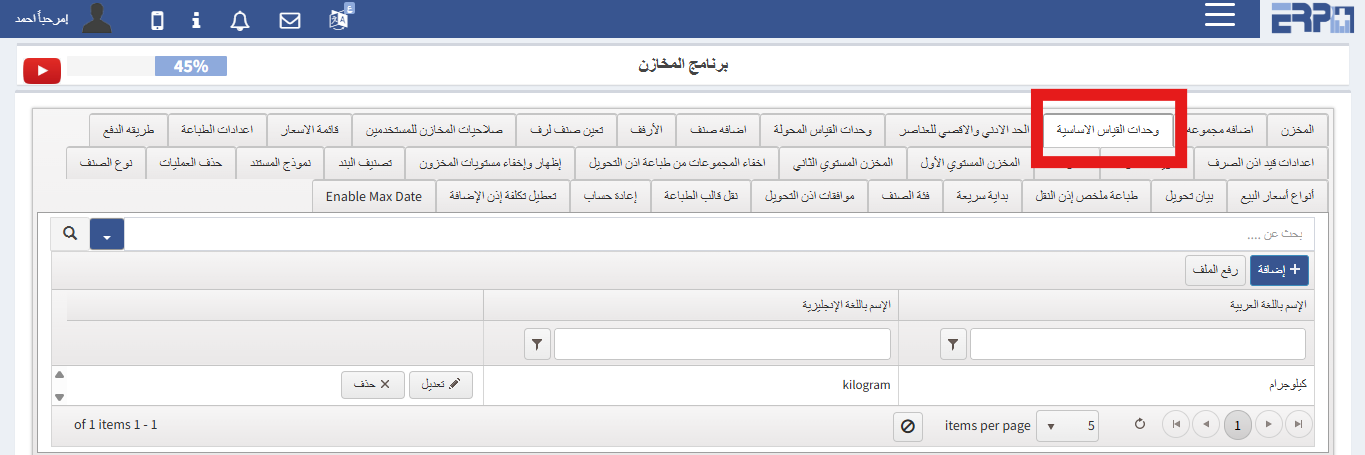
How is a fundamental unit of measurement defined?
From the Inventory Module Go to to SubModule "Settings Select Unit of Measures Click Add Complete the required details and Save
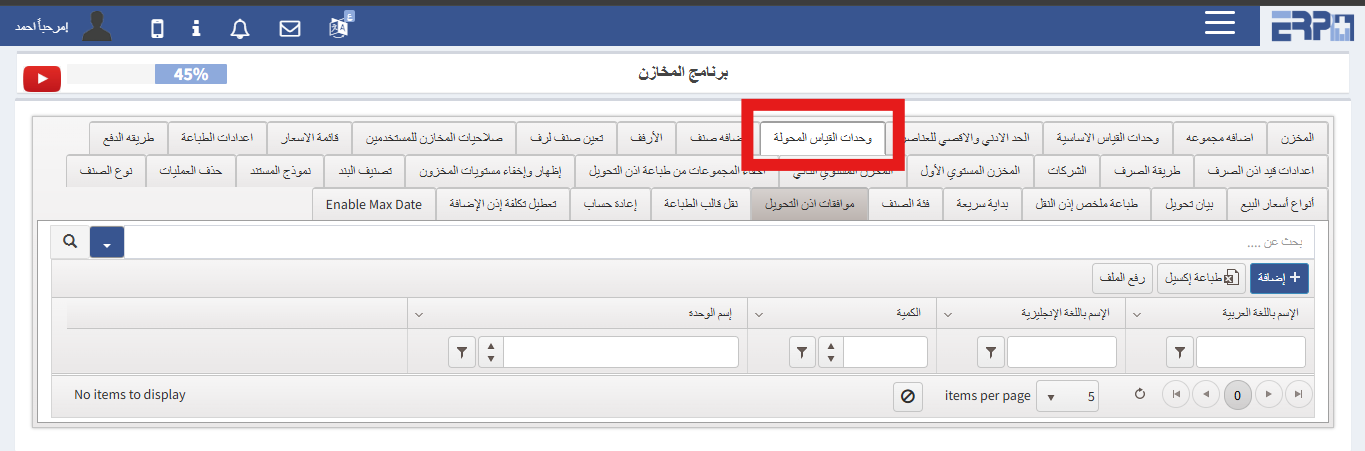
How to convert between units of measurement?
From the Inventory Module ,Go to SubModule “Settings”Select “Unit of measures Conversion ”Click Add Complete the required details and “Save”
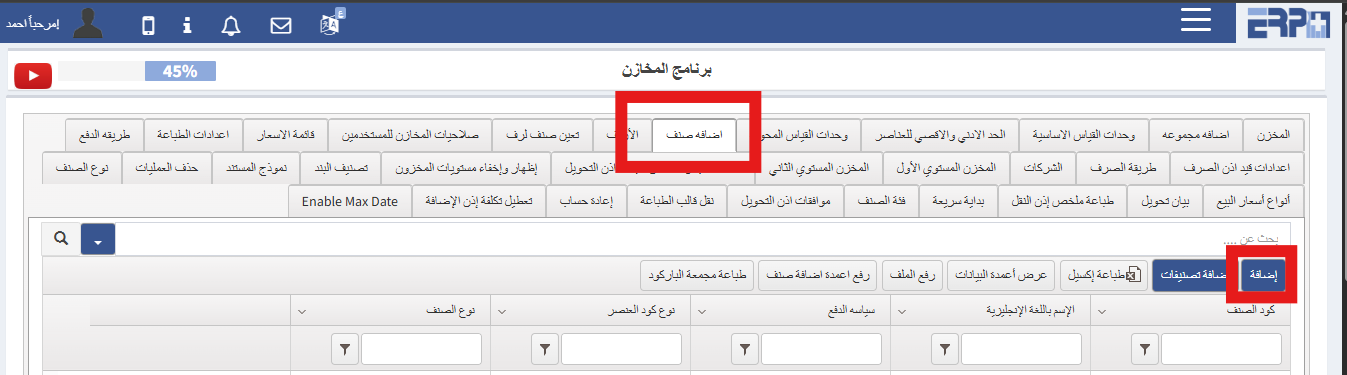
What is the procedure for adding a new item?
From the Inventory Module ,Go to SubModule “Settings”Select Item Click Add Complete the required details and “Save”
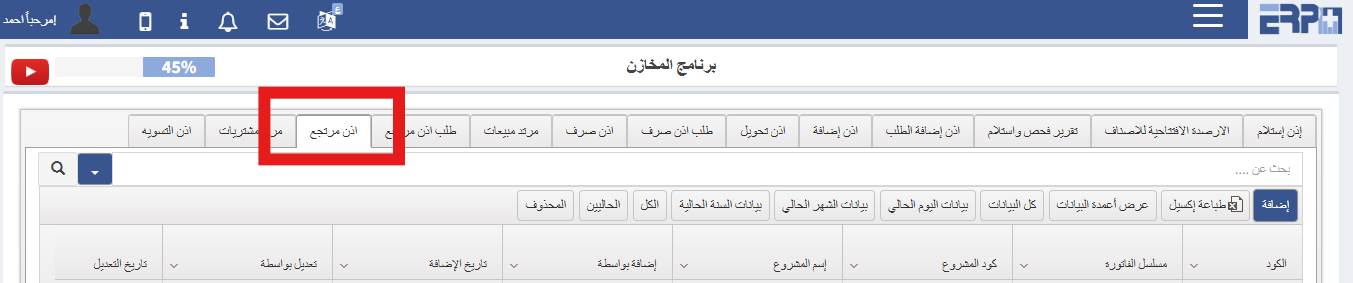
What is the procedure for processing a purchase return in the system?
From the “Inventory” Module ,Go to SubModule “Operation”select “Purchase Return "Click Add buttonChoose the relevant item and the Issue Note to complete the re... Read more
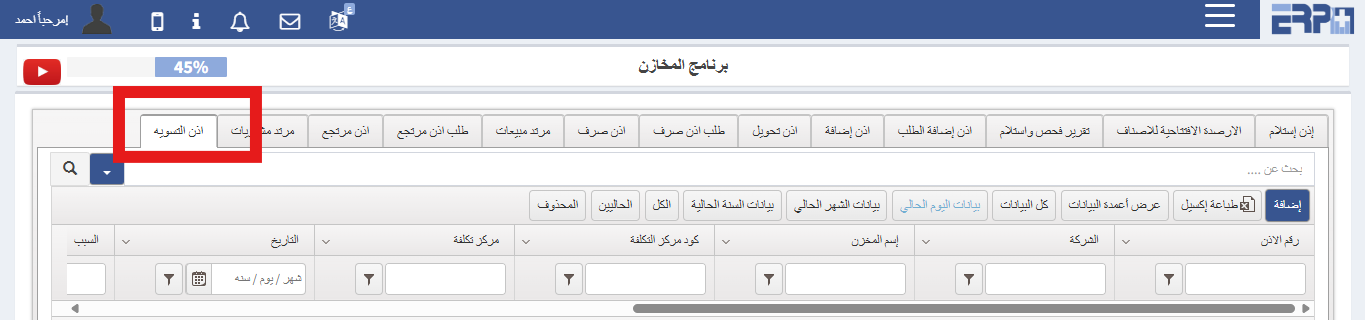
How is a settlement permit issued for the warehouse in the event of a shortage or increase?
From the "Inventory" Module ,Go to SubModule “Operations”Select “Adjustment Note "Click Add Button Select the relevant Inventory and itemsIndicate whether the a... Read more
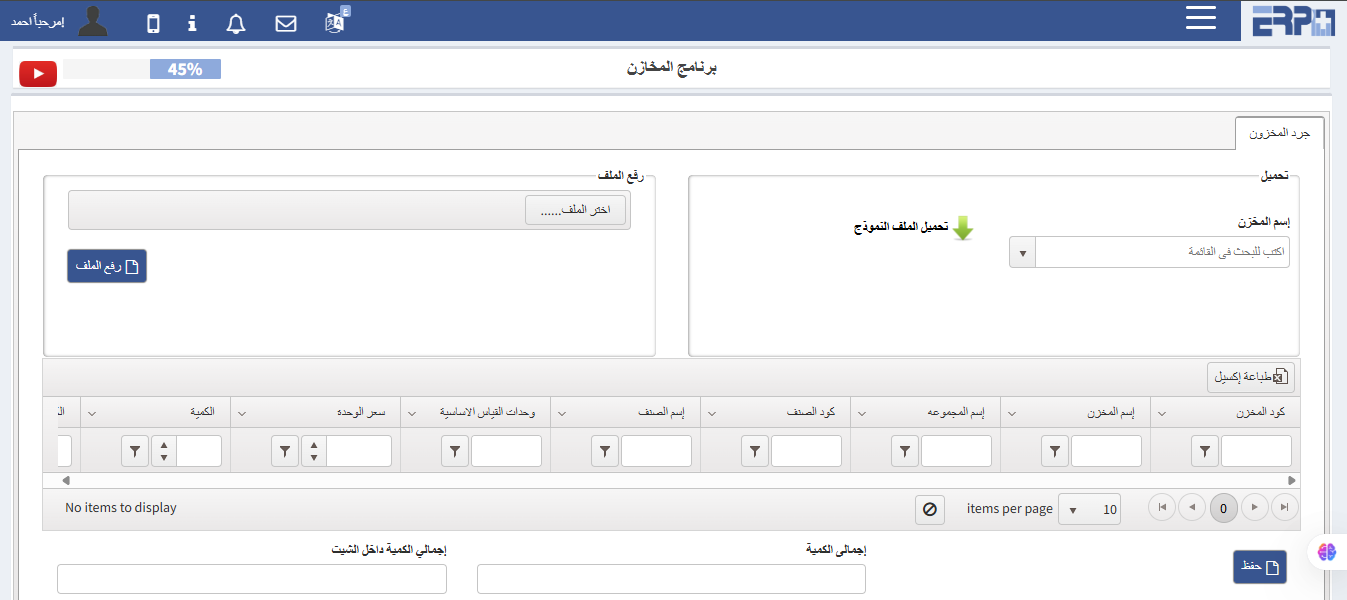
How is an inventory of the stores done within the program?
From the warehouses module, fill in the inventory inventory module. The warehouse is selected, then its file is downloaded, the data is recorded, then it is re-... Read more
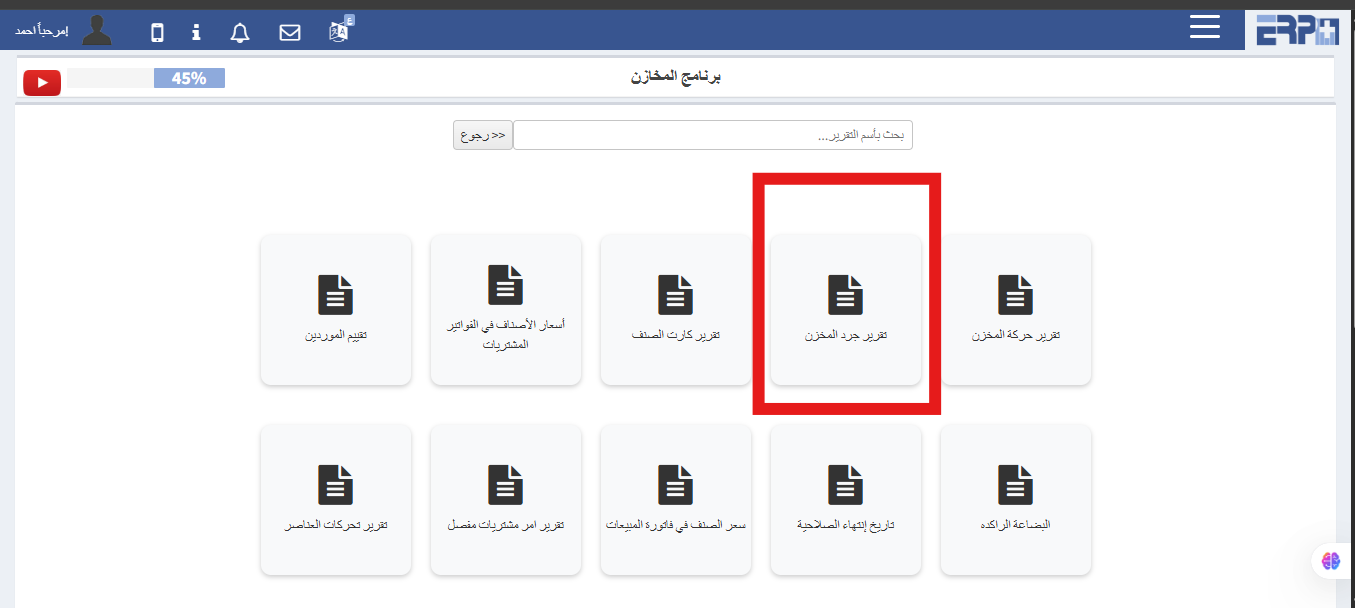
How to extract a stock inventory report?
From the Warehouses module, fill in the Reports module, then choose the Inventory Inventory Report
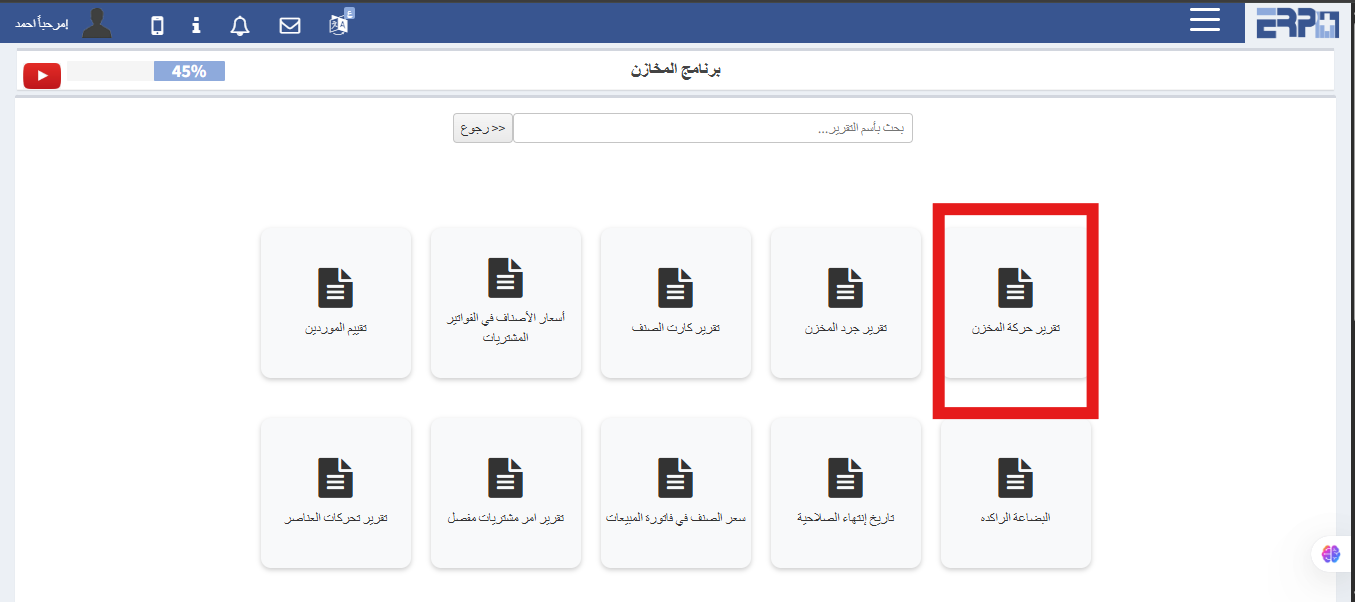
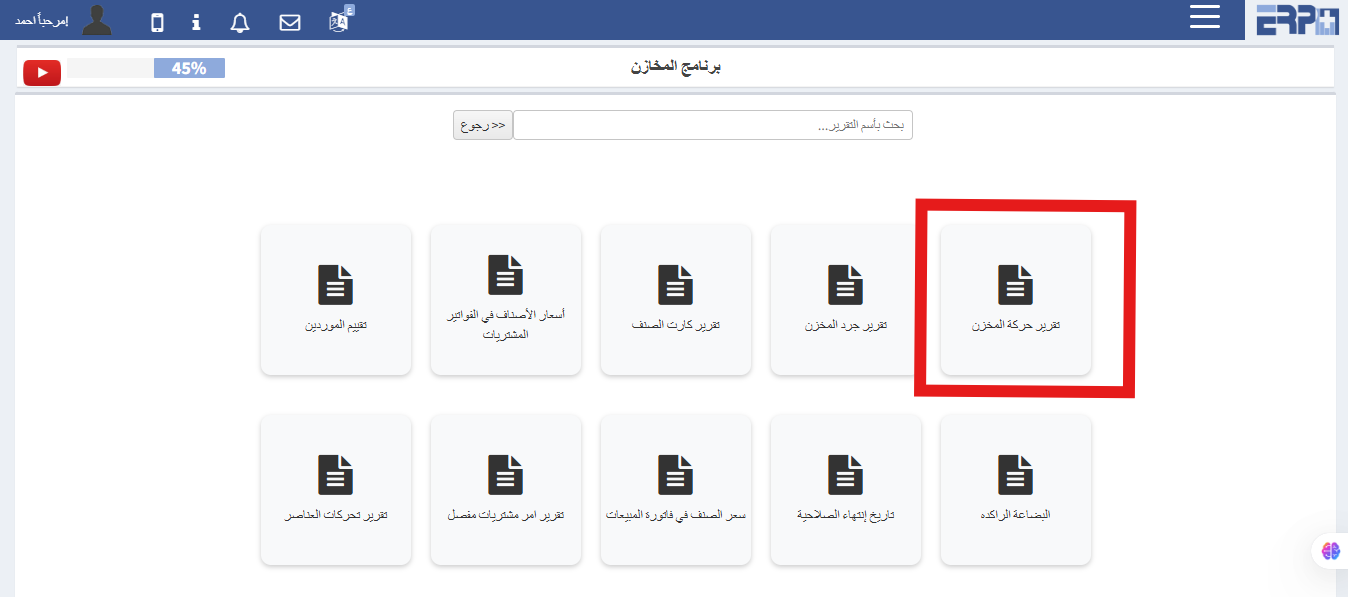
How to extract a report on the movement of an item?
From the warehouses module, fill in the reports module, then select the item card report
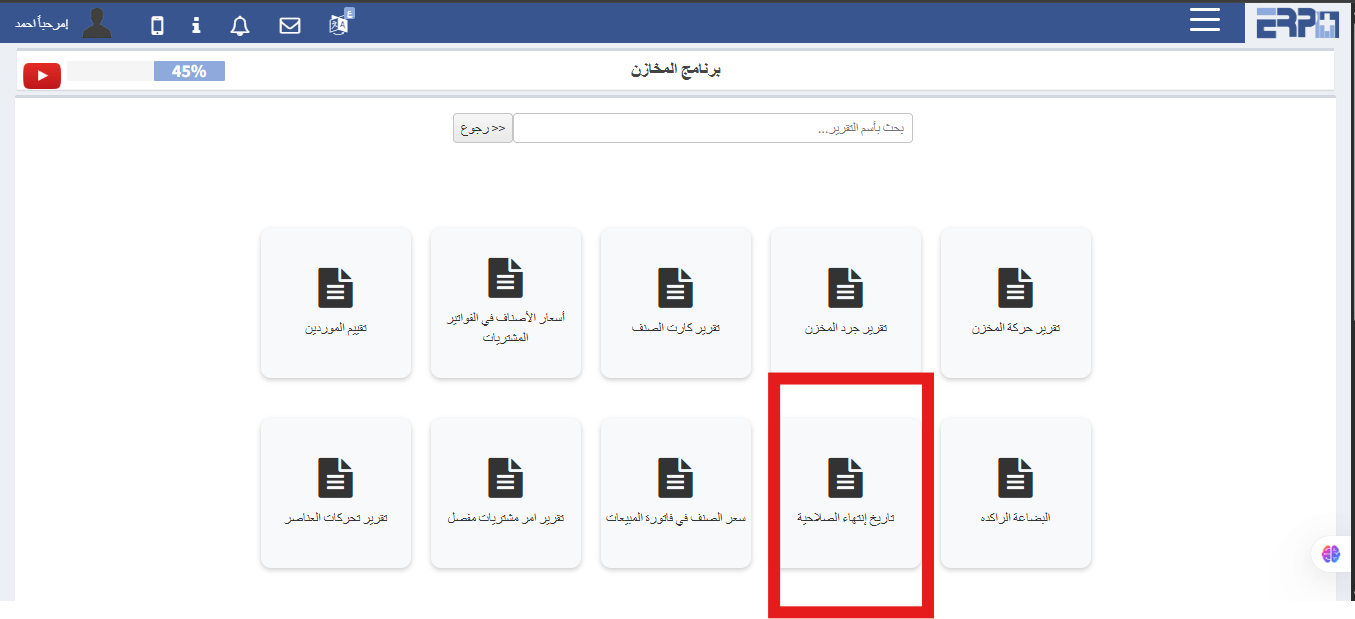
How to extract a report with expiration dates?
From the Warehouses module, fill in the Reports module, then choose the Expiry Date report
Need more help?
Our support team is always ready to assist you.