Latest FAQ
185 results found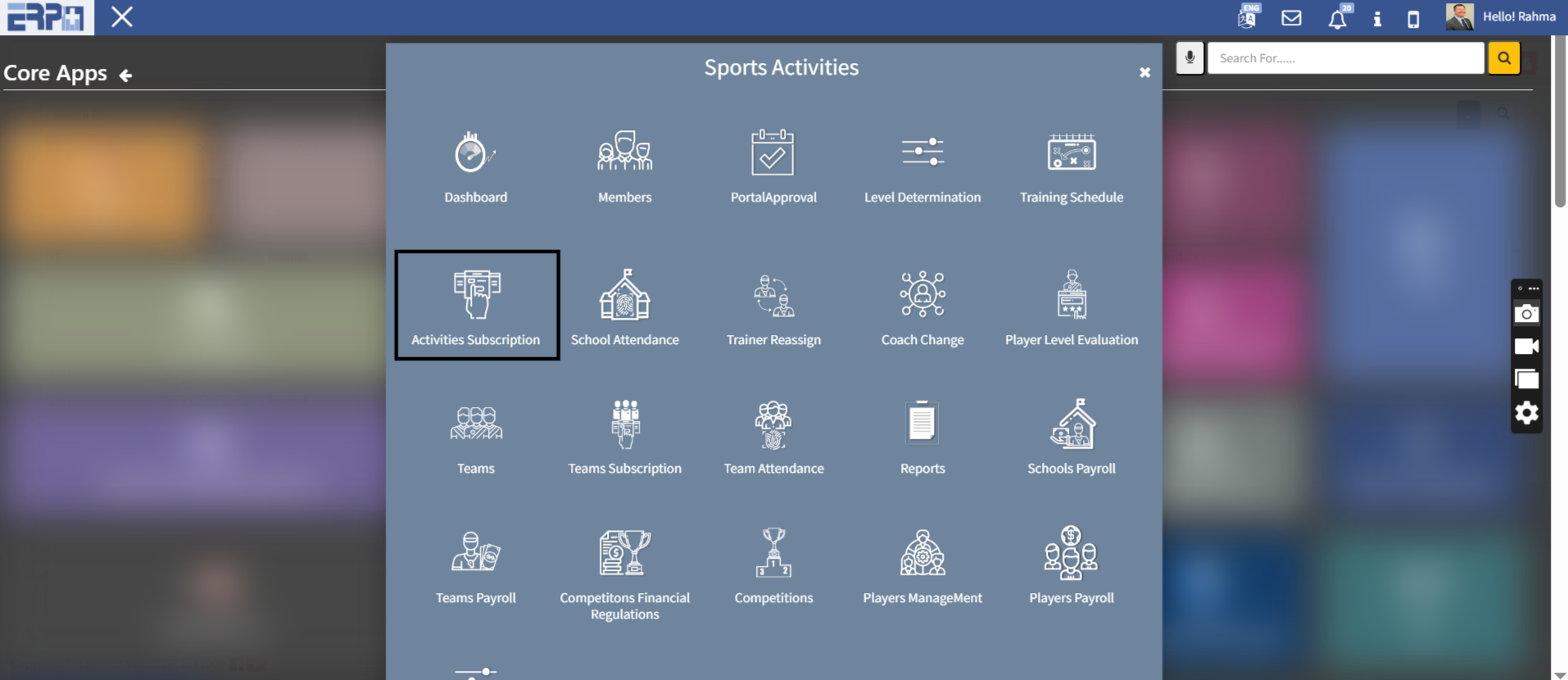
How to subscribe in sports activities?
From Sports Activities Module :Go to Sub Module “Activities Subscription”Go to Add Complete the required details and confirm the request
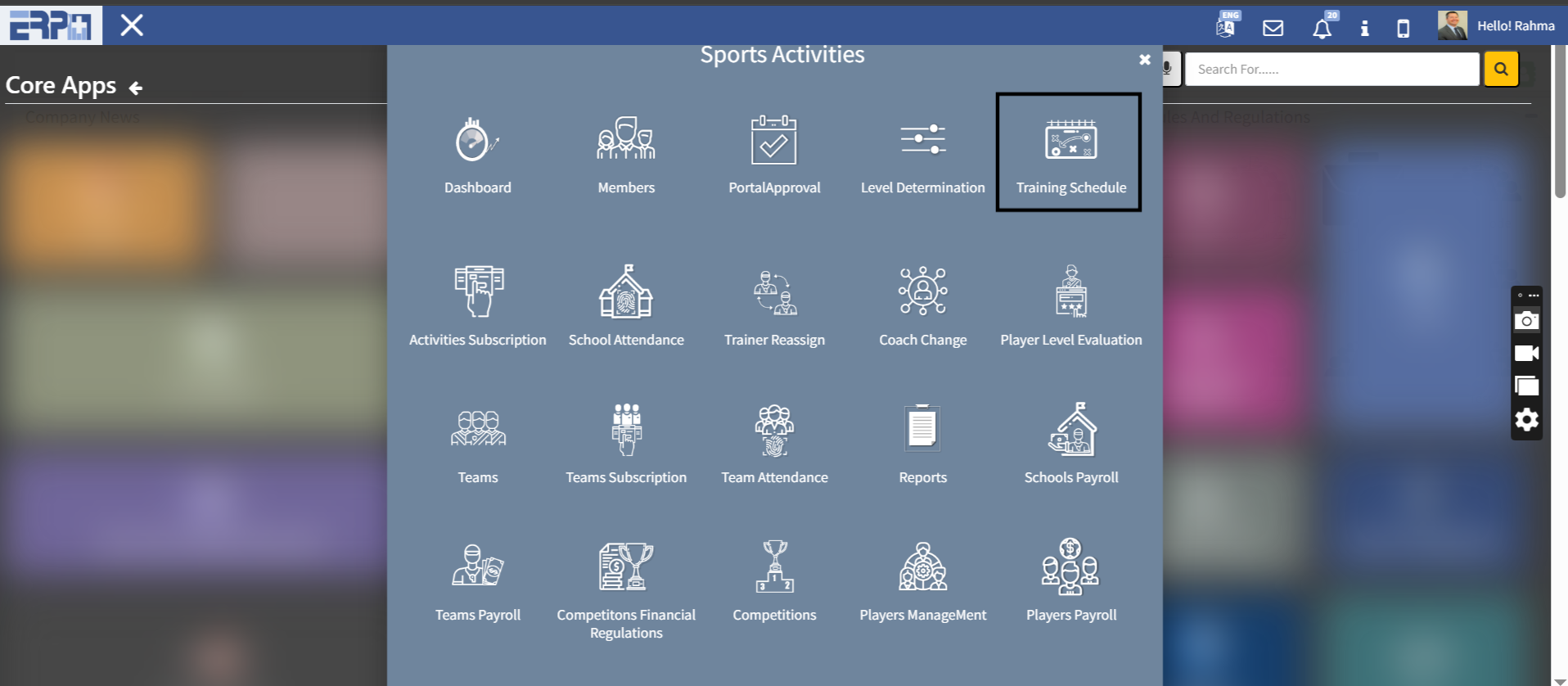
How to make a schedule for the training ?
From the Sports Activities module:Go to Sub Module “Training Schedule ” Go to Add Complete the required details and confirm the request
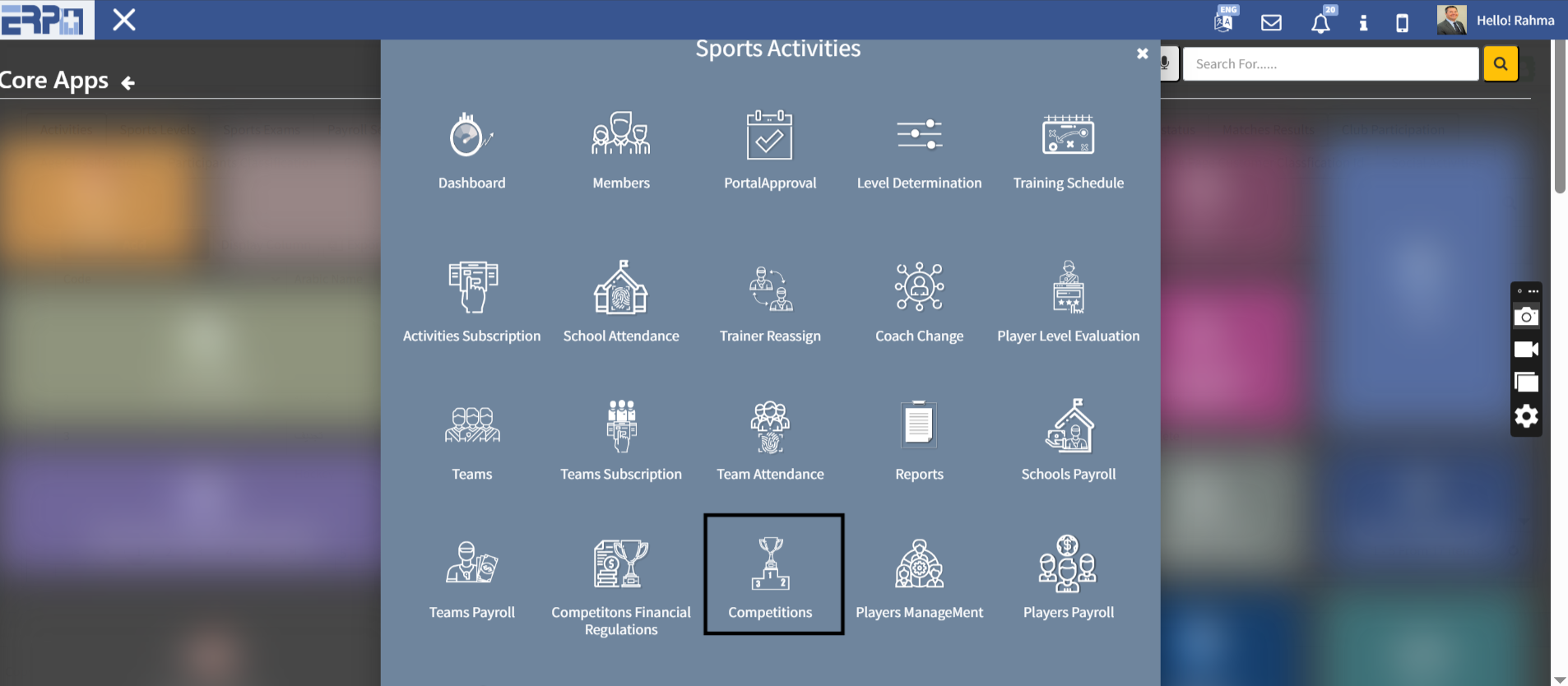
How can competitions be created in the Sports Activities module?
From the Sports Activities ModuleGo to the Sub Module "Competitions" Go to AddComplete the required details and confirm the request
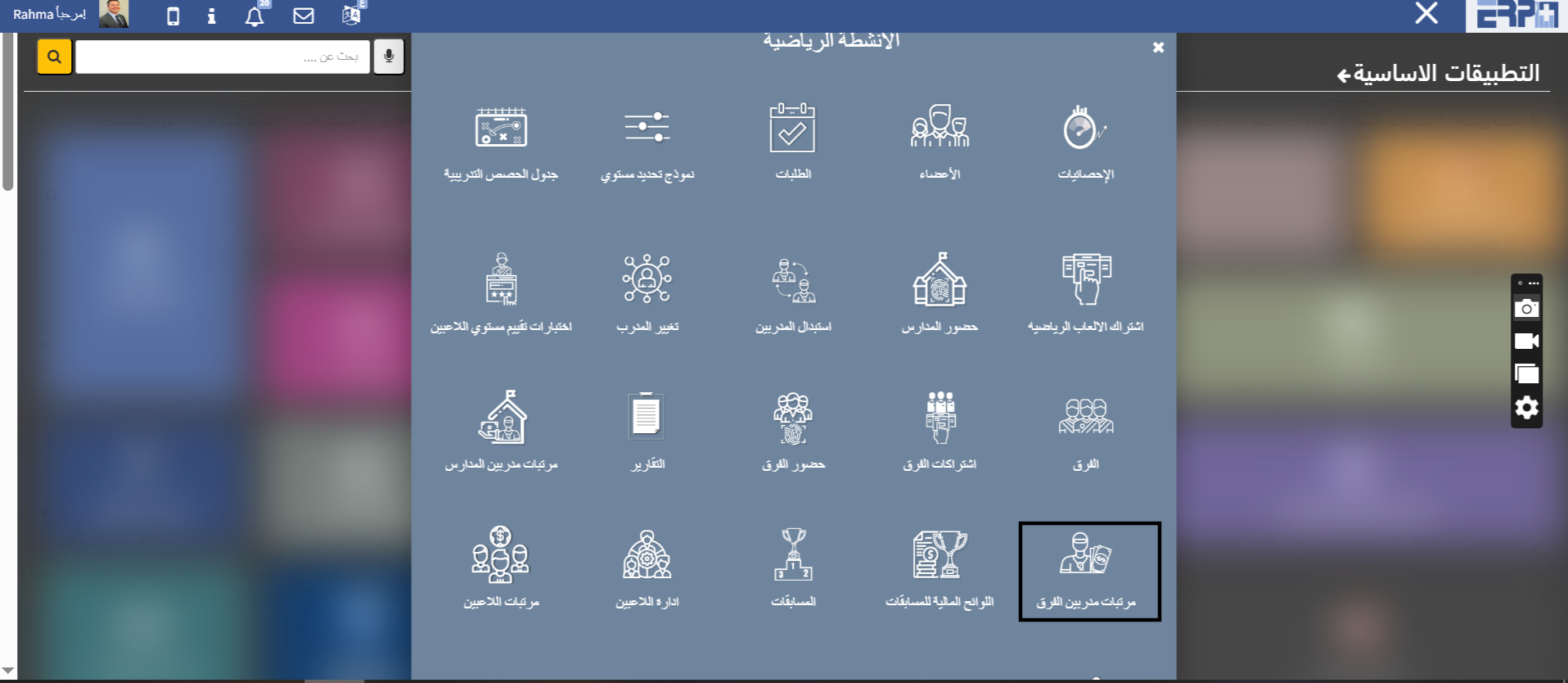
How can the salaries of the team coaches be displayed?
From the sports activities module:Go to Sub Module “Team Payroll”Complete the required details and press Show
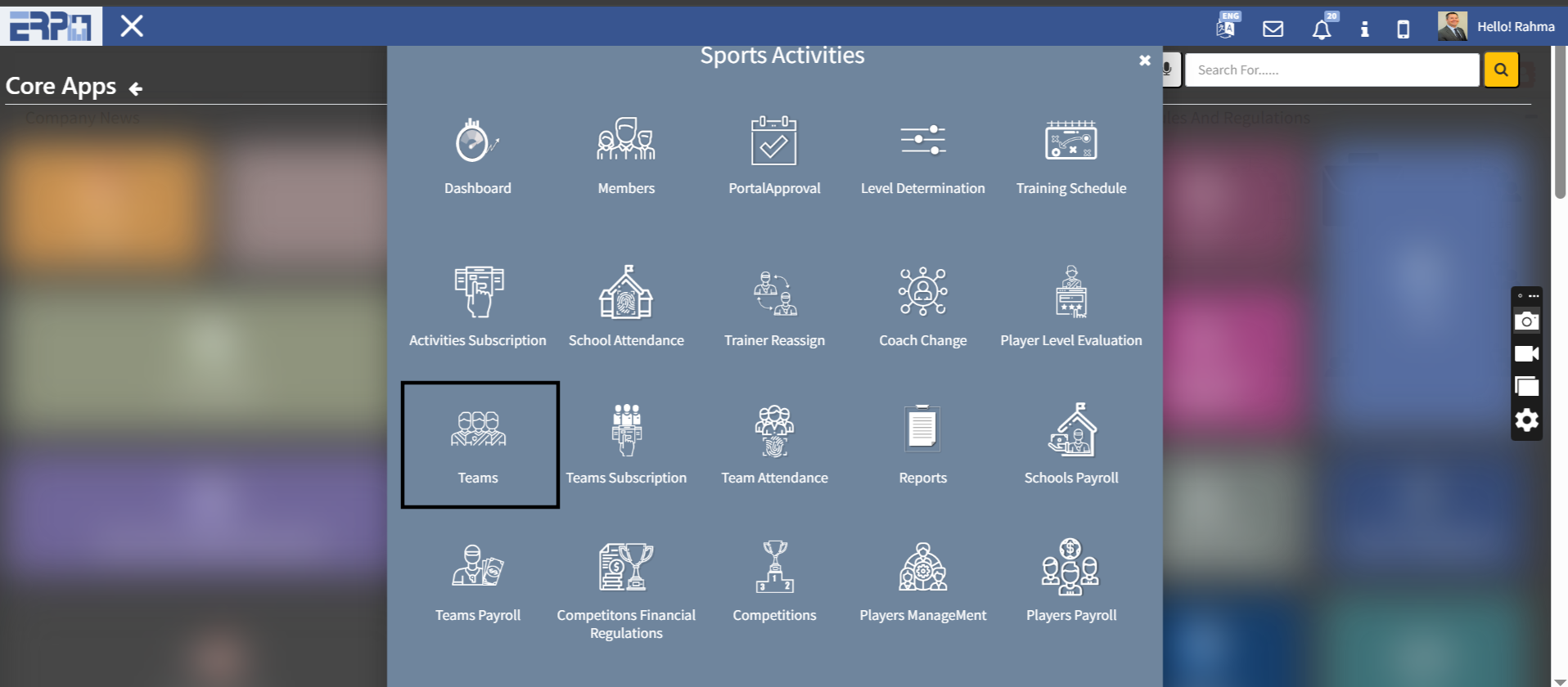
How to create teams in the Sports Activities module?
From Sports Activities module:Go to Sub Module “Teams” Press on AddComplete the required details and confirm the request
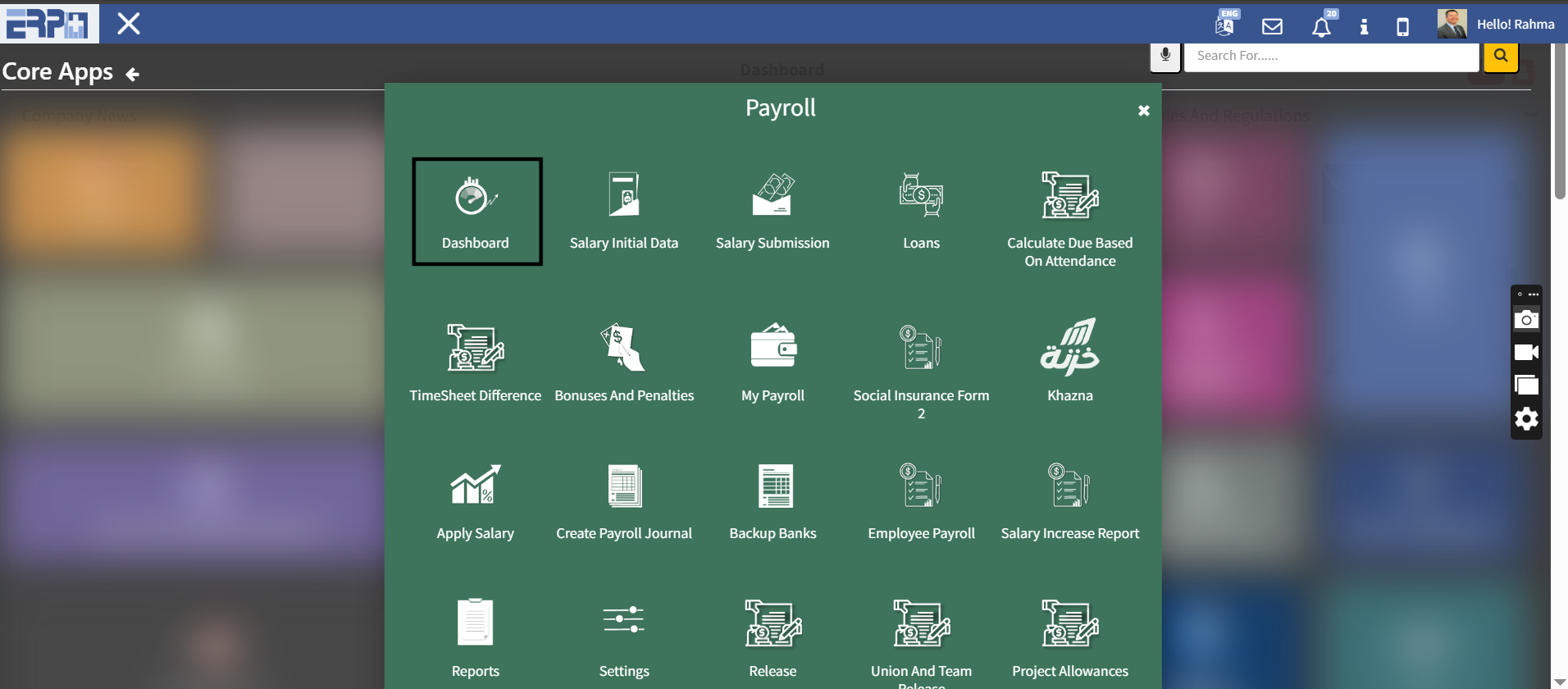
How can salary Dashboard be reviewed ?
From the Payroll Module Go to Sub Module “Dashboard”Press on “update”
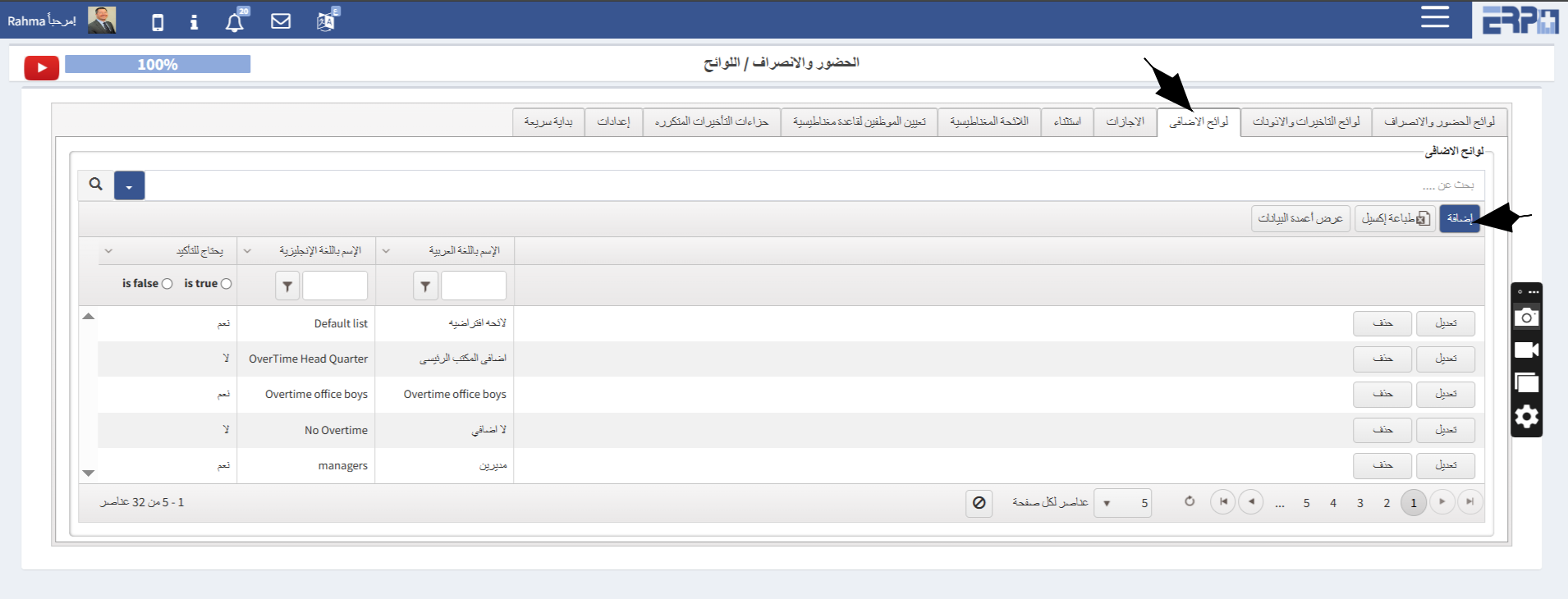
How to calculate the employee's overtime?
From the Attendance Module:Go to Sub Module "Regulations" Go to "Overtime Regulations" The overtime regulation is created based on the company’s official poli... Read more
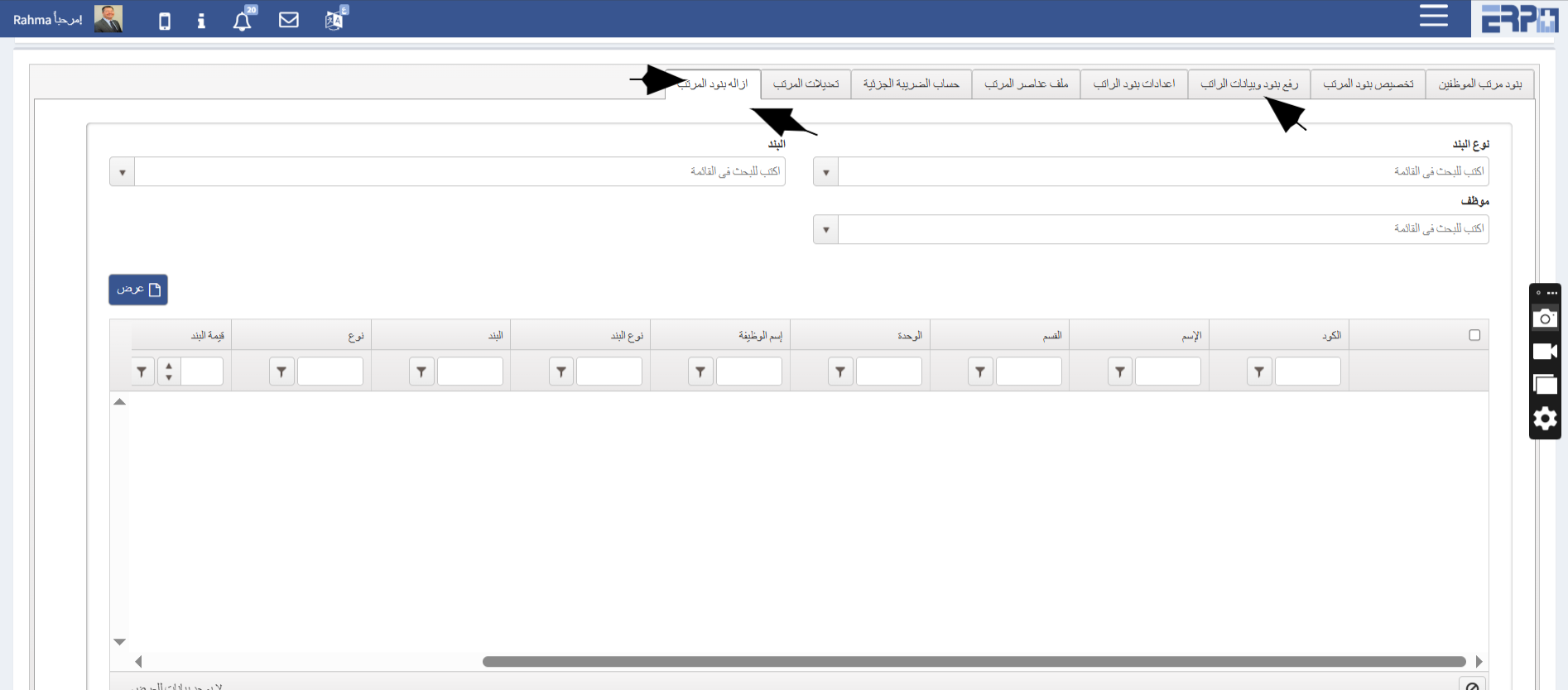
What is the process for bulk removal of an element from specific employees, or for assigning the element for a limited period?
From the Payroll Module :Navigate to Submodule “Salary initial Data”Go to "Unassign Salary Elements"Select the element type and the employees Click “Save” to... Read more
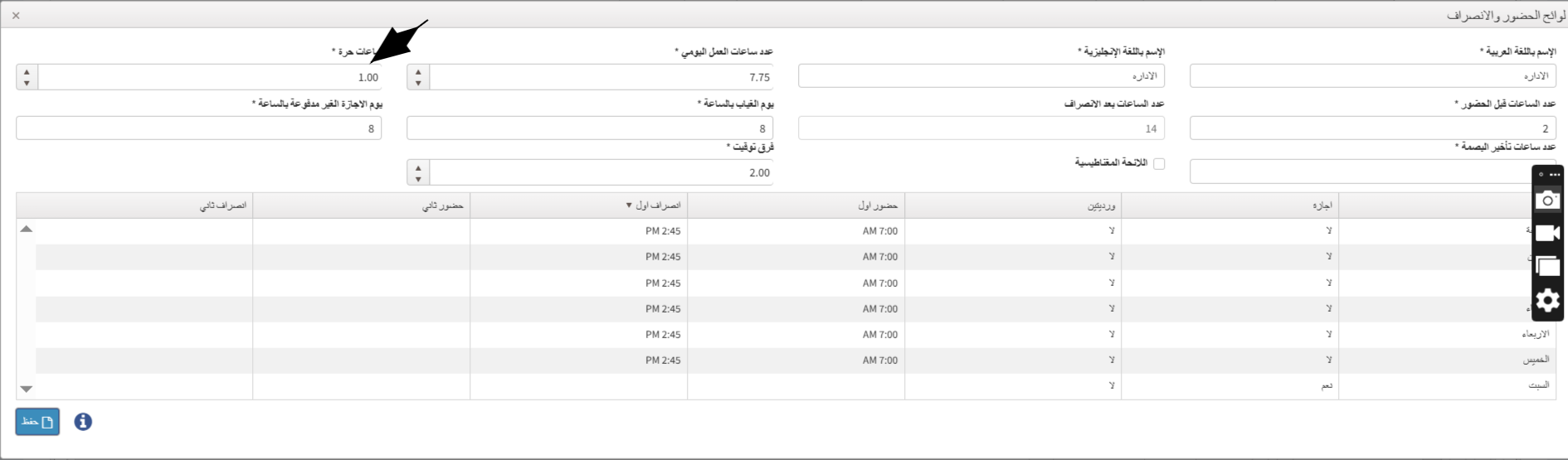
What is the process for setting up variable Regulations for an employee?
From the "Attendance" module : Navigate to the Sub Module "Regulations" On the Attendendce rule Select Add On "Flexible Hours" field specify the number of hou... Read more
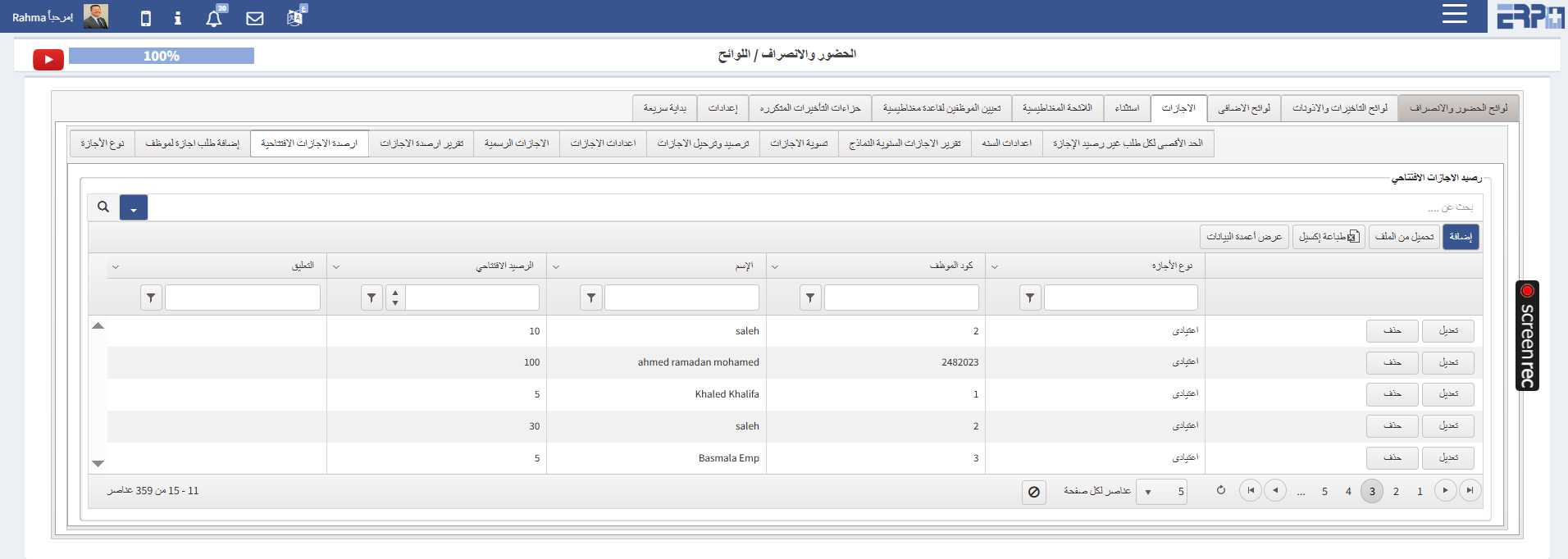
What are the procedures for calculating sick leave days according to labor law?
From the Attendance Module:Go to the SubModule “Regulations”On “Vacations” Select “Vacation Type ”Select AddEnter the Regulation Name Select Paid “NO” On Unpa... Read more
What is the process for converting between units of measurement?
From “Inventory module”Navigate to the SubModule “Settings” Go to “Unit of measures conversion”Select Add Enter the Name , the Quantity and Unit Name Select “Sa... Read more
What is the process for converting between units of measurement?
From the “Inventory Module” Navigate to the SubModule “Settings” Select Add Enter the Name ,Quantity and the Unit Name
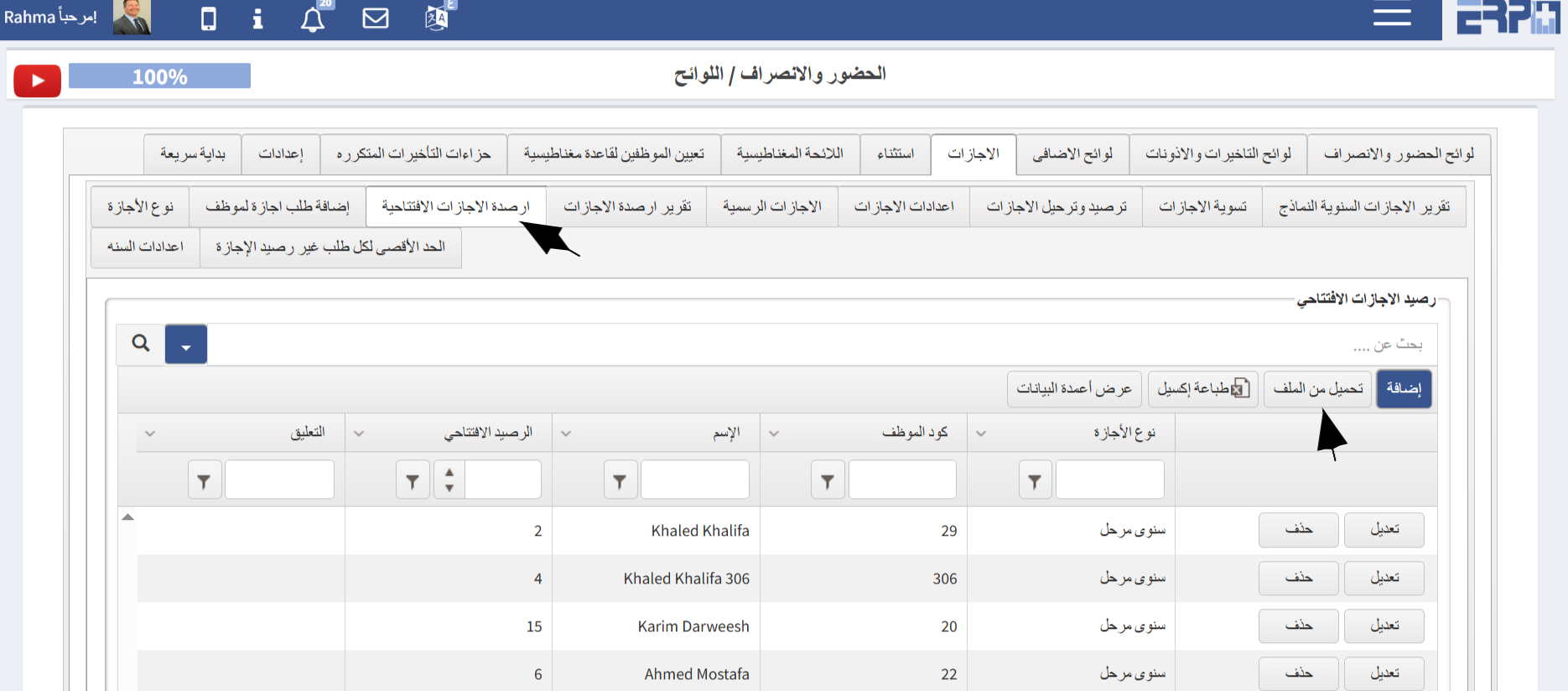
How to add opening vacation balances for employees?
From the Attendance ModuleGo to the SubModule “Regulations” Select Vacation Choose Opening Vacation BalanceUpload from Sheet Complete the required details Down... Read more
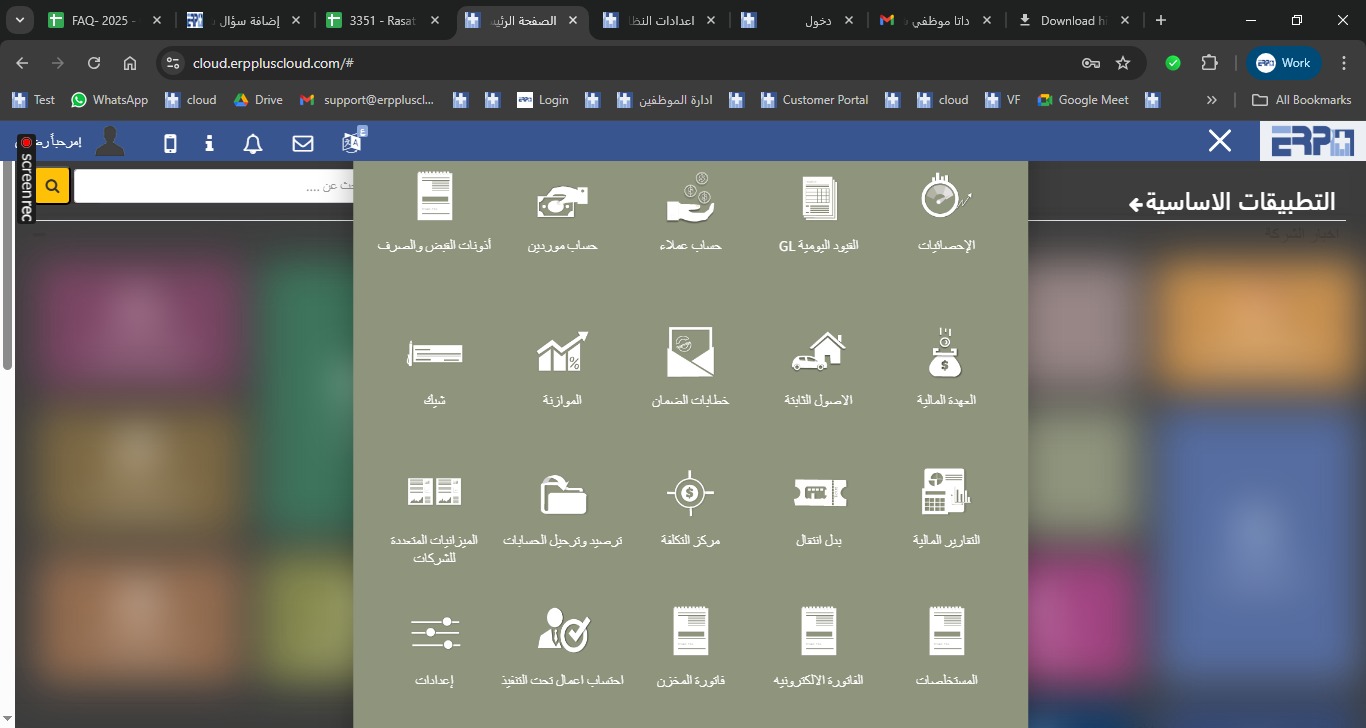
How to add a fiscal year to the company?
From the Accounting moduleGo to SubModule “Settings”Go to Fiscal year Select Add Complete the required details and confirm the request
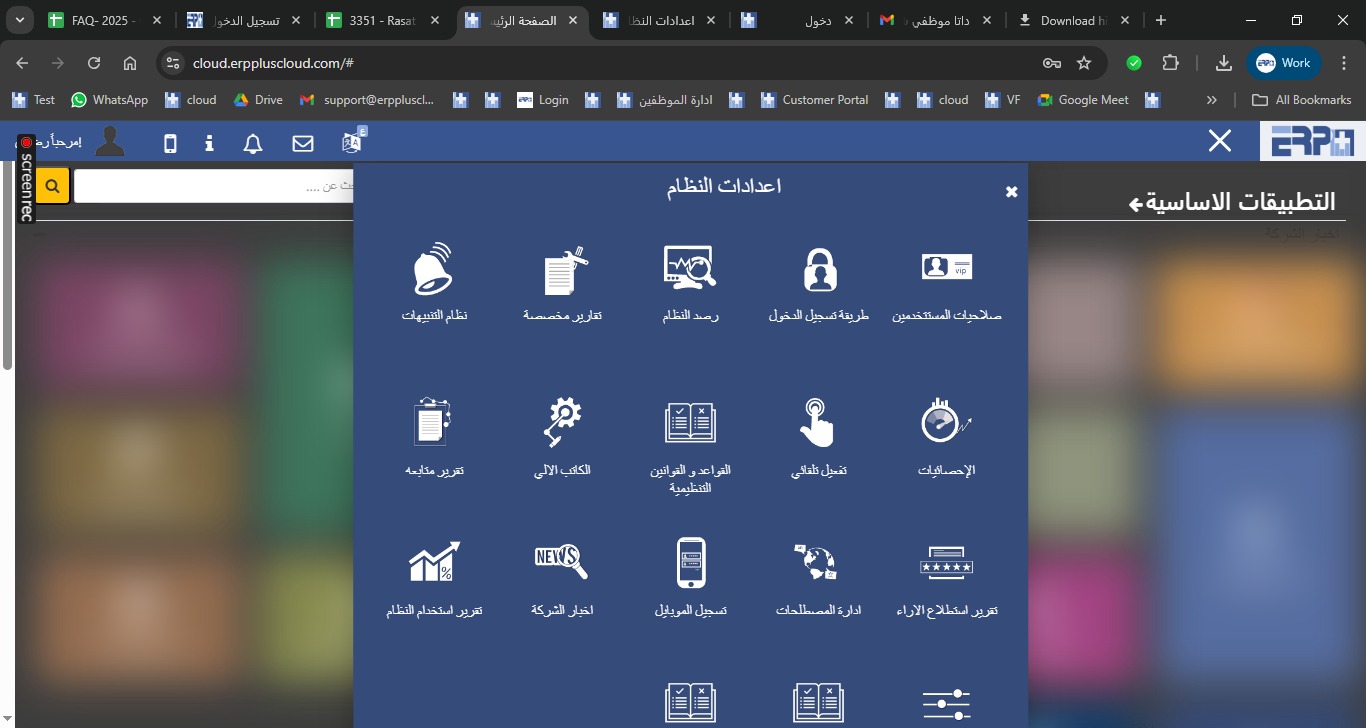
How to add permission to modify vacations
Enter the system settings module, then enter the user permissions module and choose the permission to report vacations and opening balances
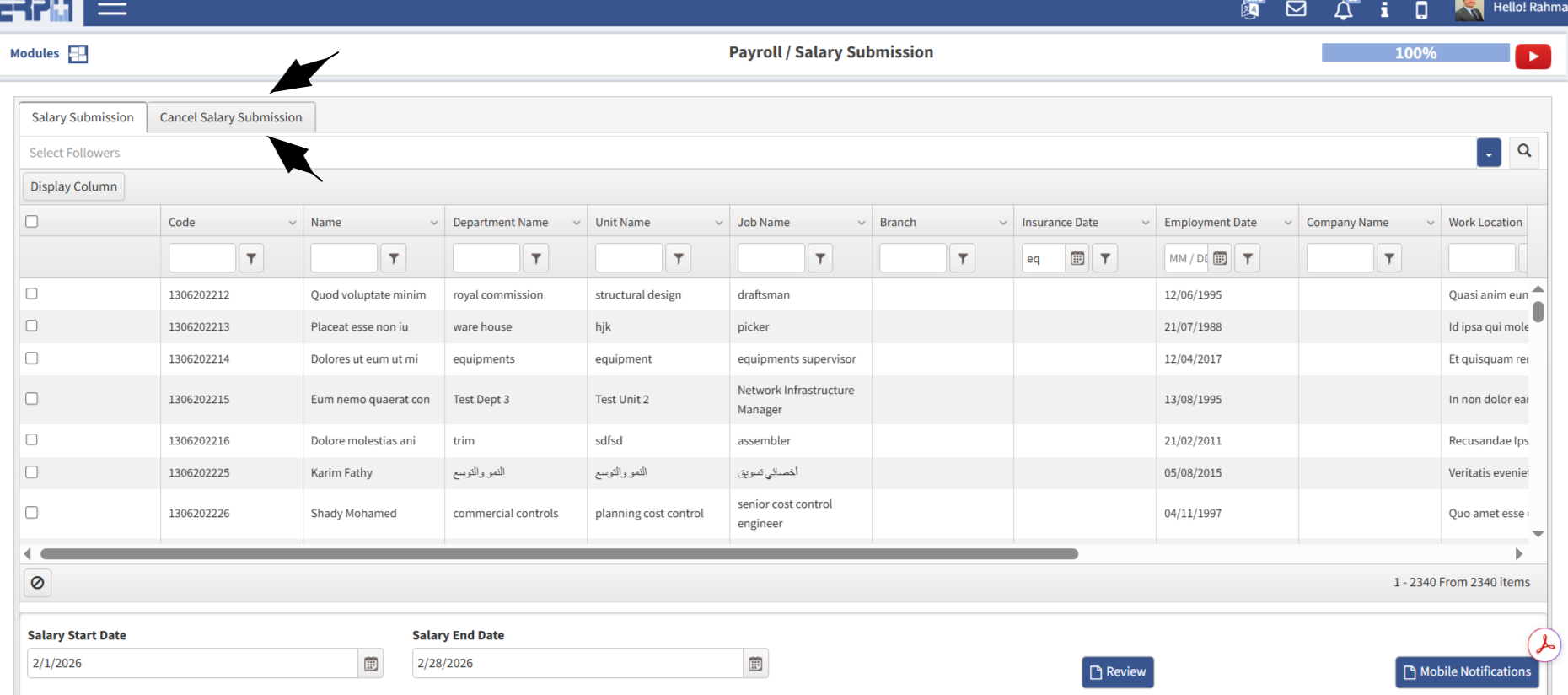
How to carry over and balance vacations
Enter the attendance and departure module, then enter the module for the regulations, then choose leaves, then the balance and transfer box, then choose the typ... Read more
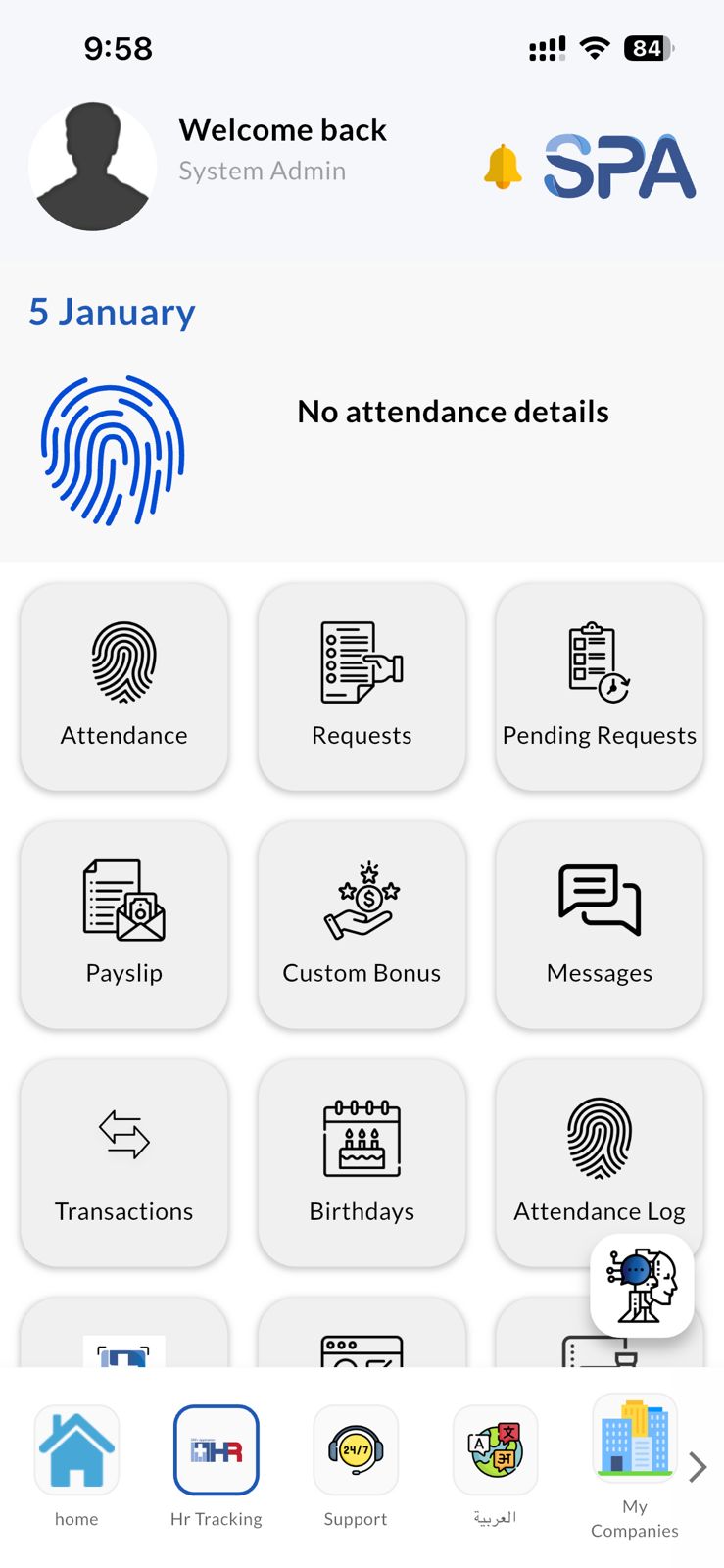
Explanation of the SPA program for human resources
Through this application, requests for vacations, permissions, and errands can be made. Attendance and departure can also be fingerprinted, and the manager can... Read more
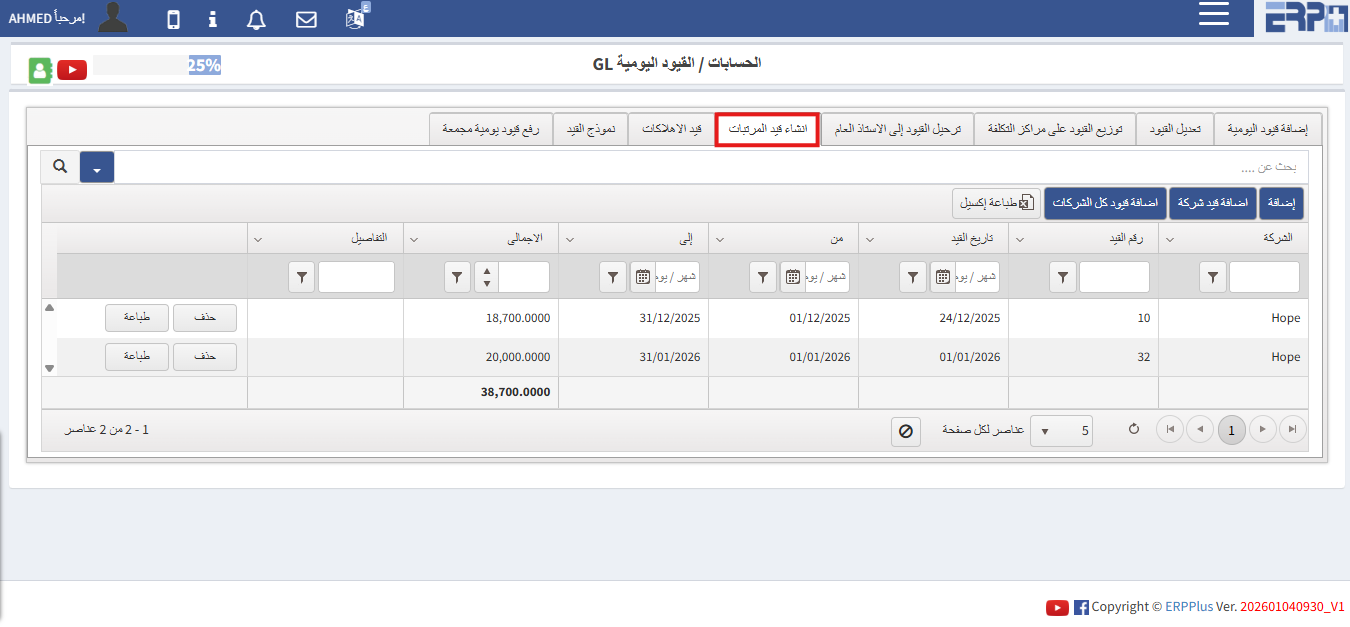
How can I create a payroll entry?
From the Accounts module, then click on Daily Entries GL. There is a button to create a salary entry
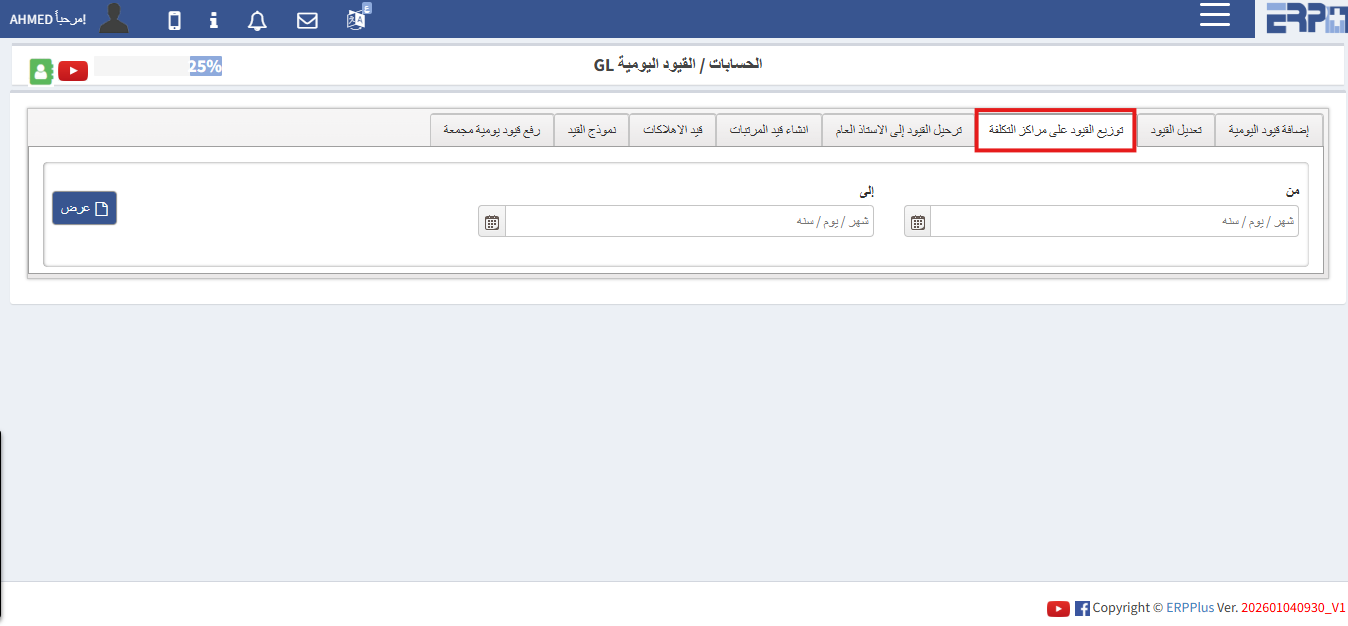
Is it possible to add cost centers to daily restrictions?
From the Accounts module, then we click on Daily Restrictions GL. There is a button for distributing restrictions to cost centers
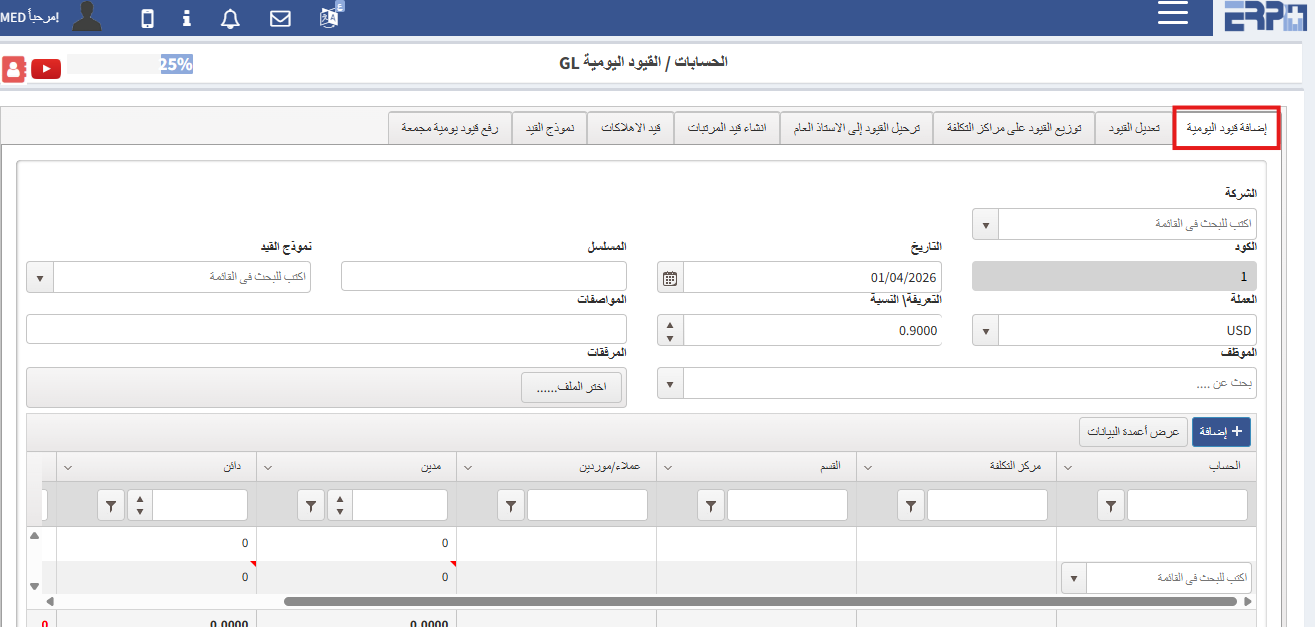
How can I add a journal entry?
From the Accounts module, then click on Daily Restrictions GL. There is a button to add daily restrictions
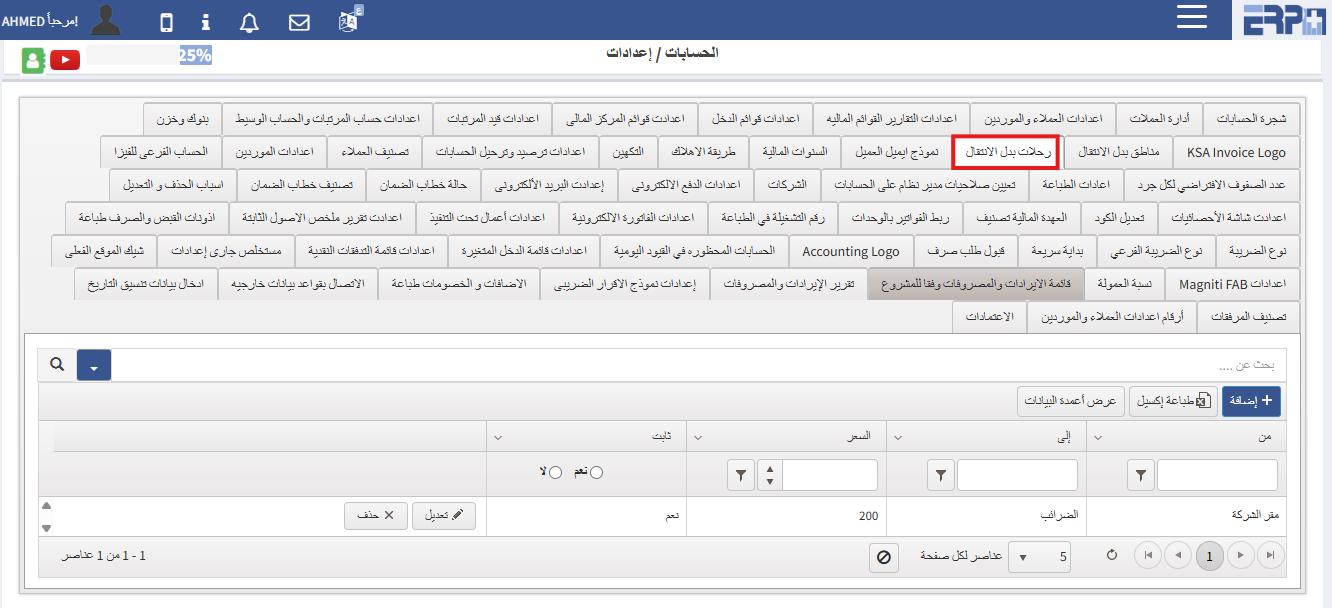
Can transportation allowances be determined?
From the Accounts module, then click on Settings. There is a Trips button instead of Transfer
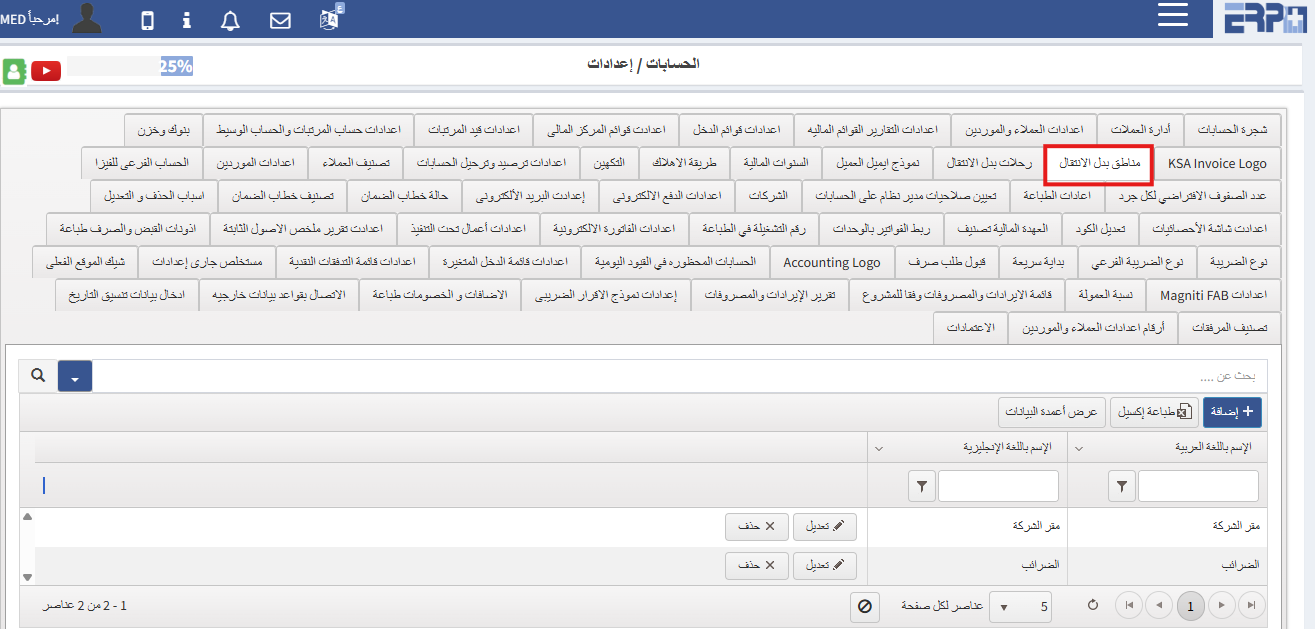
How can transfer locations be defined?
From the Accounts module, then click on Settings. There is a Regions button instead of Moving
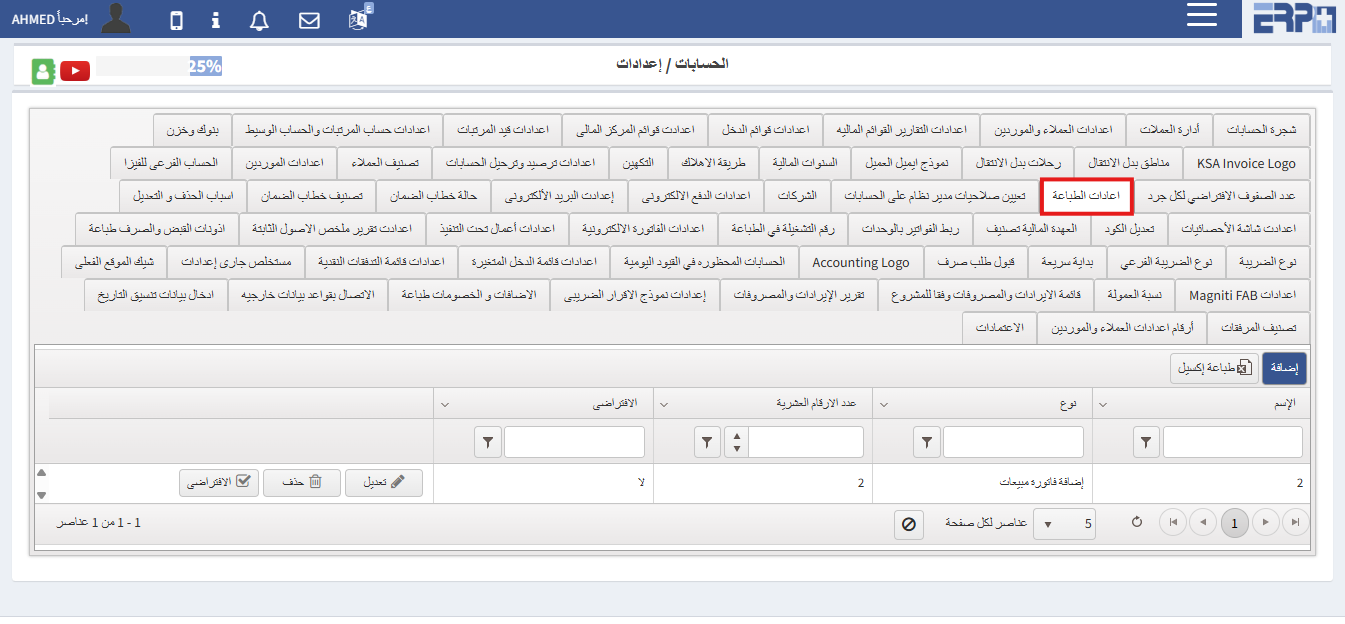
Is it possible to print invoices in a different format than the program?
From the Accounts module, then click on Settings. There is a Print Settings button
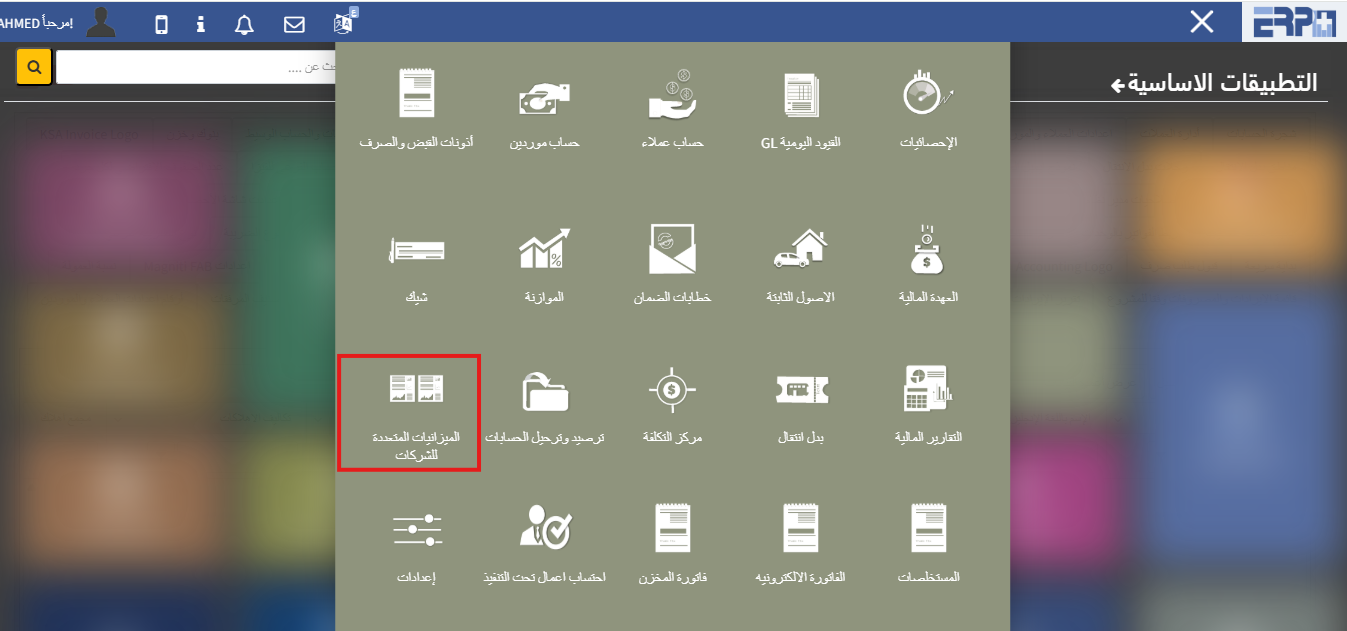
How to add a multiple budget for more than one company?
From the accounts module there is a button for the multiple budgets for companiesfrom which companies can be defined
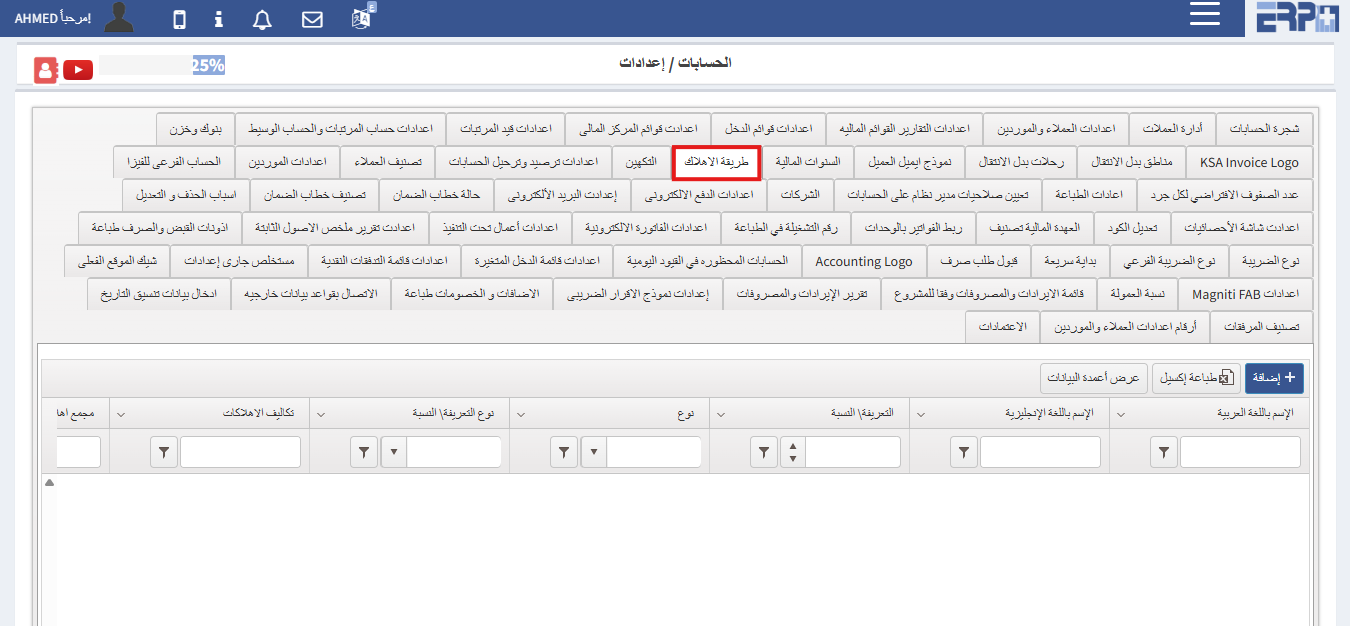
How are depreciation methods defined?
In the account module settings, there is a depreciation method button through which depreciation methods can be defined
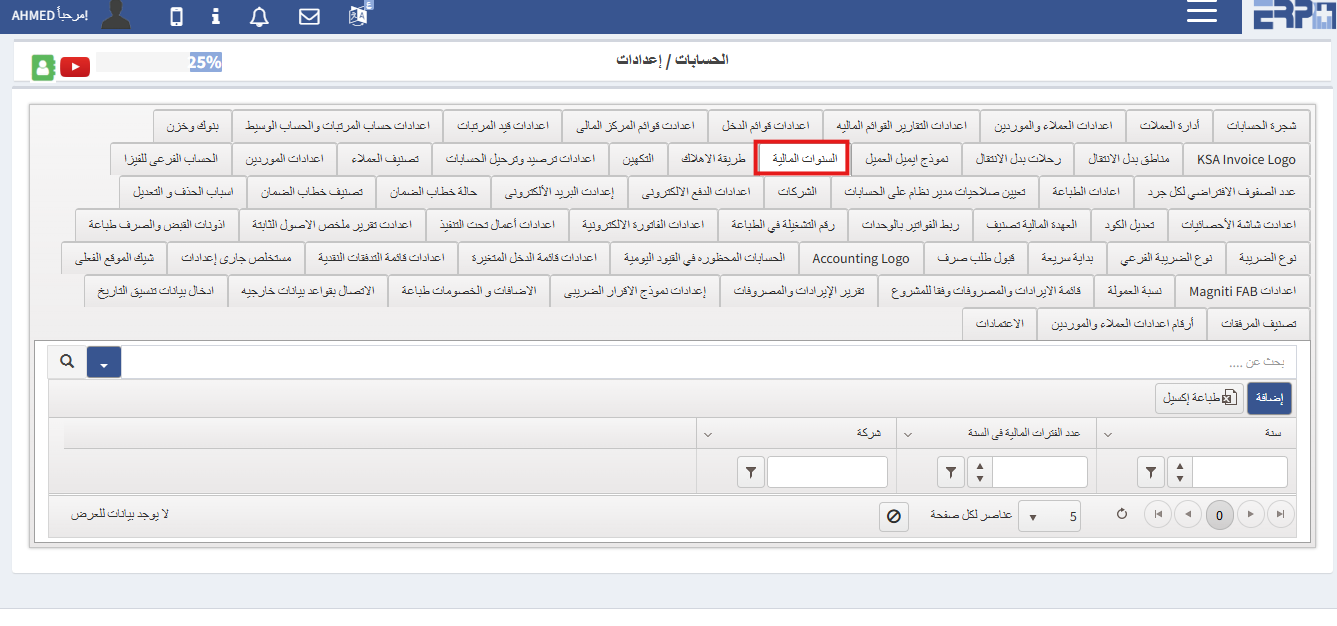
How are financial periods defined?
In the accounts module settings, there are buttons for financial years through which you can define
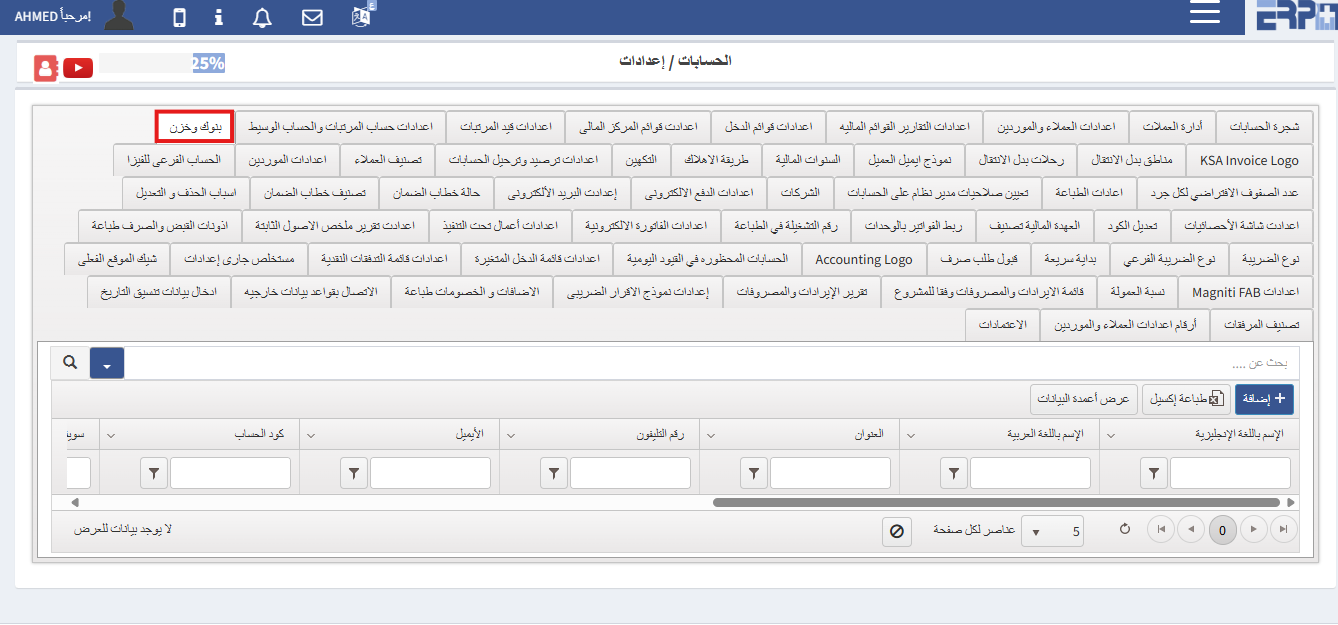
How are banks defined and linked to accounts and the employee responsible for them?
In the Accounts module settings there are Banks and Store buttons through which banks can be defined
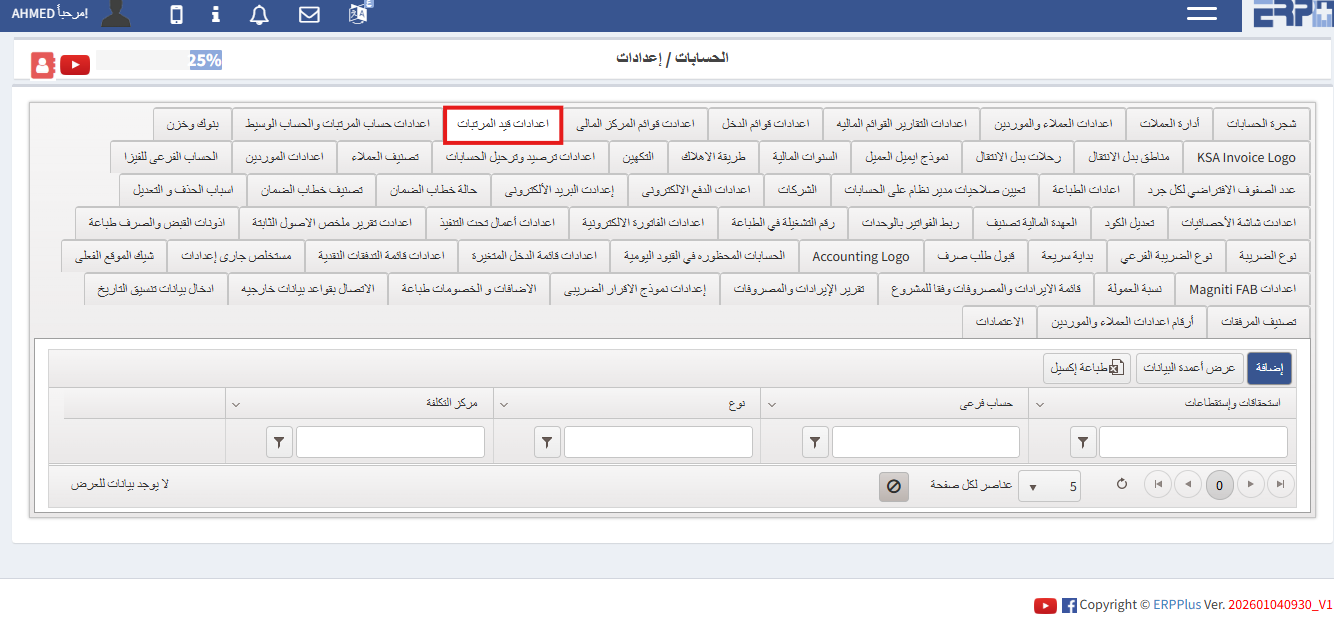
How are payroll settings adjusted?
In the Accounts Module settings there is a payroll entry button through which the settings can be adjusted
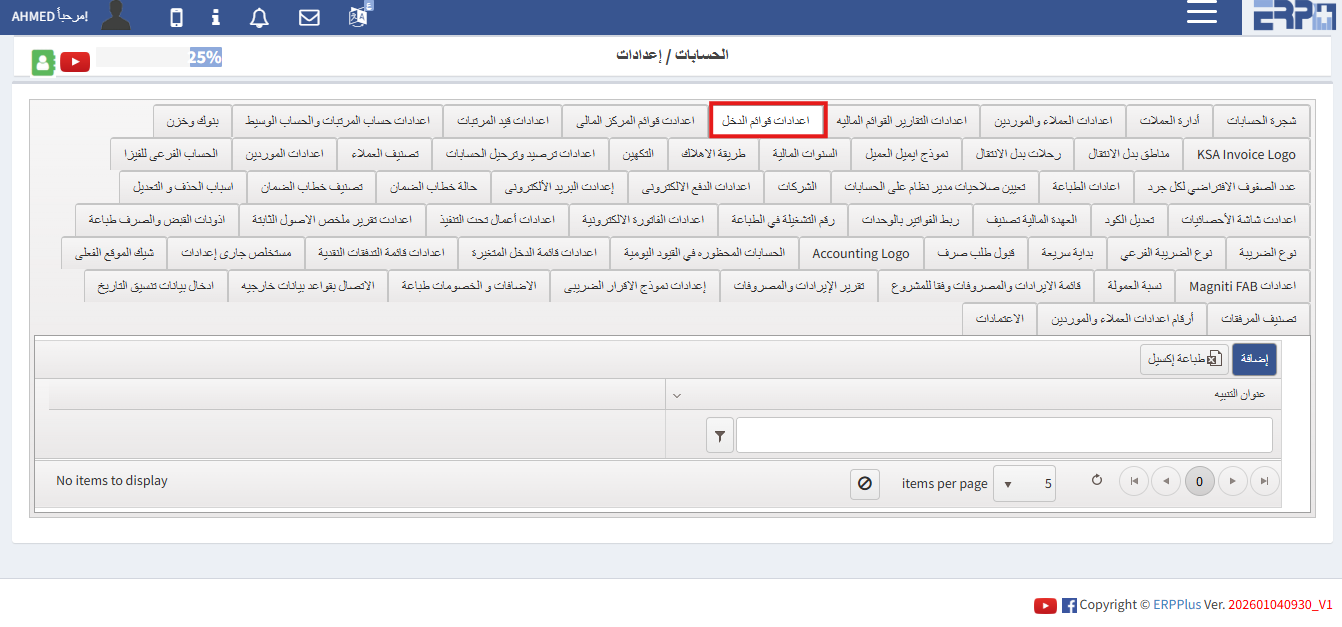
How are the income list settings adjusted?
In the accounts module settings, there is an income menu button through which the settings can be adjusted
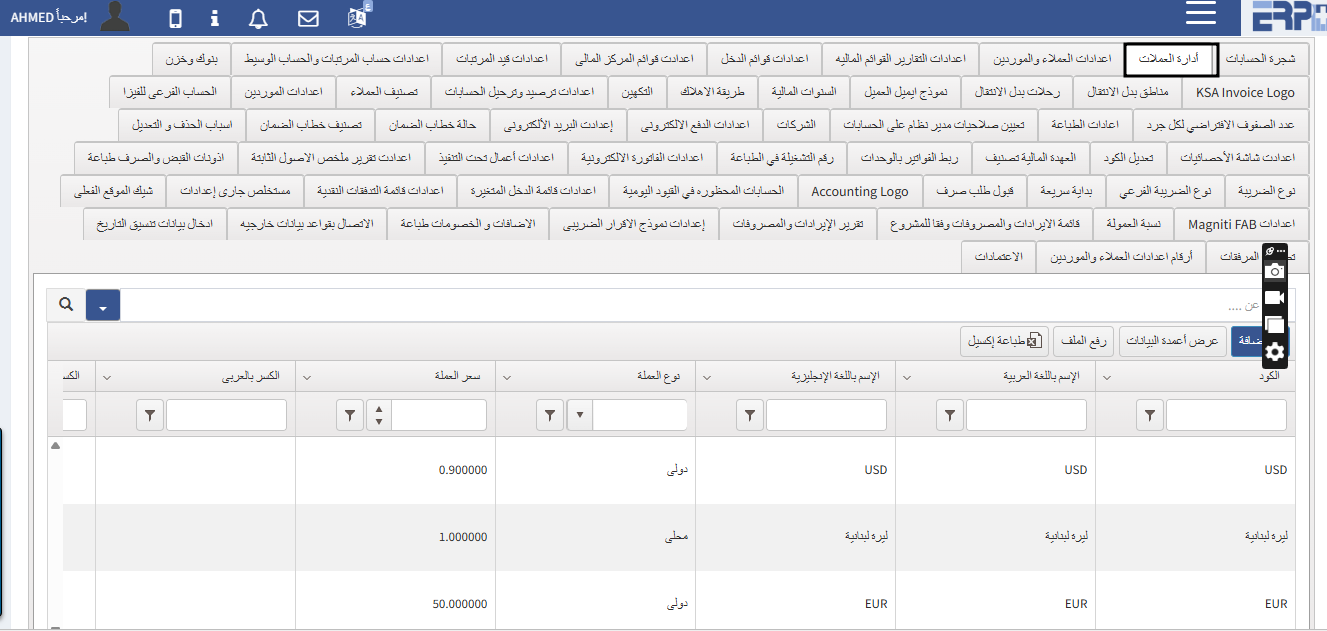
Is there a "currency management"?
Of course, in the account module settings, there is a button to manage currencies
Need more help?
Our support team is always ready to assist you.